Link TSC Printers Directly to BarTender Cloud
You can now connect CloudConnect TSC printers directly to BarTender Cloud from the Printers page. When a CloudConnect printer is connected, the user can print a label directly on the printer, bypassing the Print Gateway or Windows virtual machines entirely when printing.
|
|
In order to directly link a TSC printer, that printer must be part of Seagull's Universal Driver. |

Linked printers are available at the Automation and Enterprise tiers. The Essentials tier does not include this feature.
|
|
Before you can link a TSC printer directly to BarTender Cloud, you must upgrade your printer's firmware to support CloudConnect. |

Compatible Printers
The following printers are compatible with CloudConnect.
|
Type |
Family/(Example) |
|---|---|
|
Desktop |
DH/TH (TH240T) |
|
Industrial |
MB economy (MB241) |
|
Print engines |
PEX (PEX2240) |
|
Mobile |
Alpha-40L, Alpha-30L, Alpha-30R (WiFi versions) |
Linking a TSC Printer
To add a linked printer, click Add Linked Printer on the Printers page.
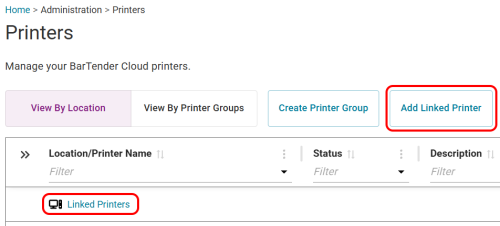
In the Add Linked Printer dialog, select TSC. On the next page, download the certificate.

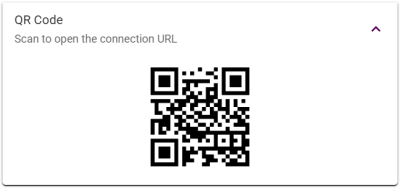
Click  to open the QR panel. Then scan the QR code and click Start Discovery.
The Discovery process searches for all eligible printers and produces a list of all available printers for the selected vendor. There is no need to add any additional information manually.
Once the list of printers is displayed, simply select the target printer from the list to add it. Once the printer has been linked, it appears in the Linked Printers section of the Printers page.
For more detailed information, refer to Adding a Linked Printer in the BarTender Cloud help.
Unlinking a Printer
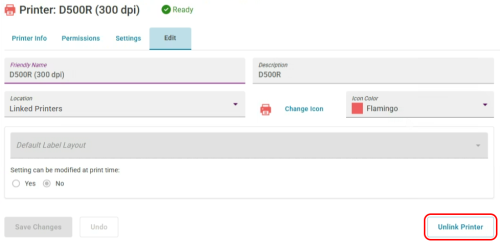
If you no longer use a linked printer, unlinking it is simple. On the Edit tab of the Pinter Details page for the linked printer, just click Unlink Printer.