Configuring Workday Integration with BarTender Cloud
-
Log in to the Workday system and use the Search function to search for View Integration System.
-
In the View Integration System dialog, search for Inventory Label Printing and select the inventory label type you would like to configure.
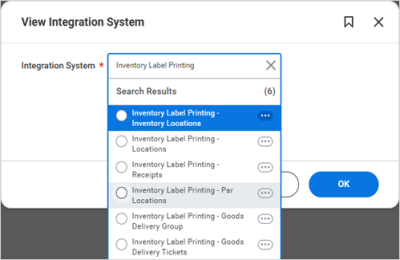
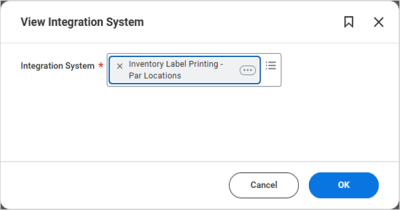
In this example, we are configuring the Par Locations label setup.
-
Click OK.
-
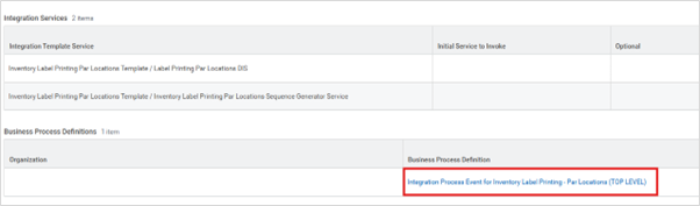
Click the link for the Business Process Definition.
-
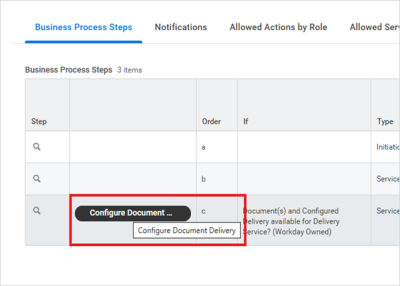
Click the Configure Document Delivery button to open the configuration page.
-
Click OK in the pop-up dialog.
-
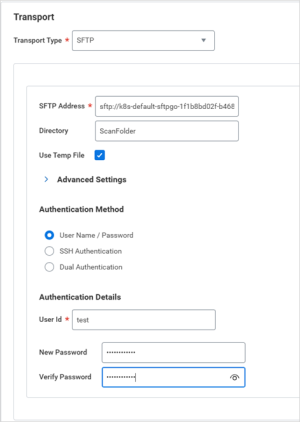
Update the configuration with the following changes:
Transport Type: SFTP
SFTP Address: sftp.bartendercloud.com:2200
Directory: ScanFolder
Use Temp File: Checked
Authentication Method: User Name/Password
-
Enter the username and password provided by your Seagull representative.
-
Repeat this procedure for any other Inventory Label Printing types you would like to use, such as Goods Delivery Group, Goods Delivery Ticket, etc.
You are now ready to begin printing with BarTender Cloud.