Modifying a Space
Once a space has been created, an administrator can make changes to the space.
|
|
You can only edit active, visible spaces. Spaces that are not visible, such as the $system space, do not display |

-
On the BarTender Cloud menu, click Administration, then Spaces to open the Manage Spaces page.
-
On the Manage Spaces page, click
 in the row for the space you want to modify.
 -
The Edit Space page opens. Modify the fields as needed.
-
Display Name: Contains the name that will be displayed in the Space dropdown on the Librarian and Print Console pages.
This is the name by which the space is known. It also displays when working in the space. Modifying this will change how the space is selected and displayed in Librarian and Print Console.
-
Space Identifier: Contains the space's ID.
The ID is used in the space's URL and therefore can contain only URL-friendly characters. Modifying this will change the URL used to access the space.
-
Description: Contains a description of the space.
This description is displayed on the Manage Spaces page.
-
Change Icon: Click to assign a different icon to the space.
-
Icon Color: Click to assign a different color to the icon.
-
Availability: Determines whether the space is visible to all users, or is hidden and therefore only available to Administrators.
-
-
Click Save.
 To modify permissions for a space
 to add a group, user, or service account to the space.
 then assign or modify the permissions for that user, group, or service account.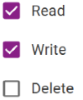
To remove permissions from a space
 to delete a user, group, or service account from this space.
Related topics